Does Turnitin Check Google Docs? How to Submit Without Losing Your Formatting
Turnitin does not accept .gdoc files directly — but there are three ways to get your Google Doc checked, each with different trade-offs for formatting, AI report generation, and version history. Here's which method to use and what each one actually checks.
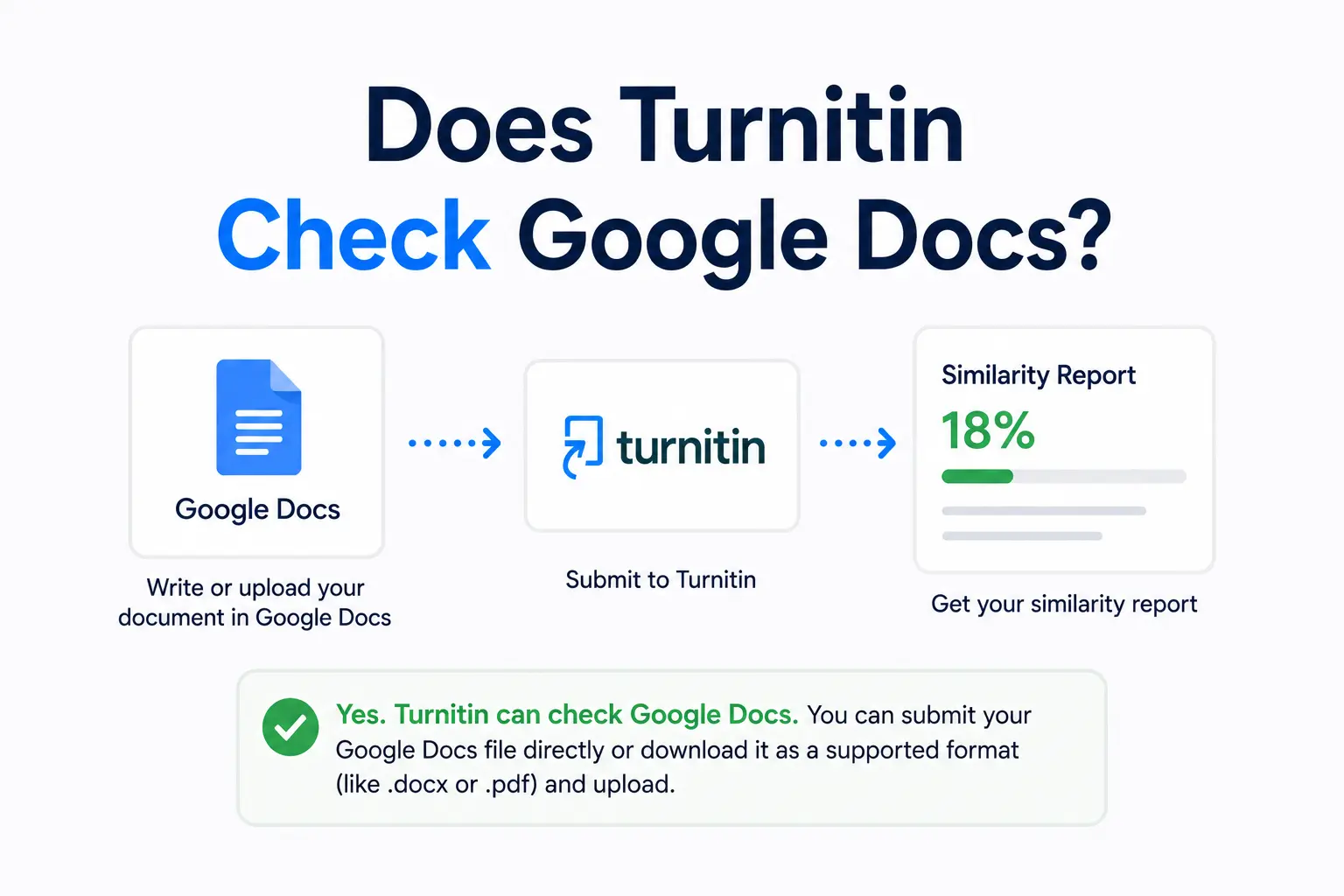
Most students write their essays in Google Docs — it autosaves, it is accessible anywhere, and it makes sharing with classmates easy. But when it comes time to submit to Turnitin, the process is less straightforward than it looks. Google Docs files cannot be uploaded directly to Turnitin. The submission goes through differently depending on which method you use, and the method matters for what Turnitin can and cannot check. Here is everything you need to know.
Turnitin does not accept Google Docs files directly
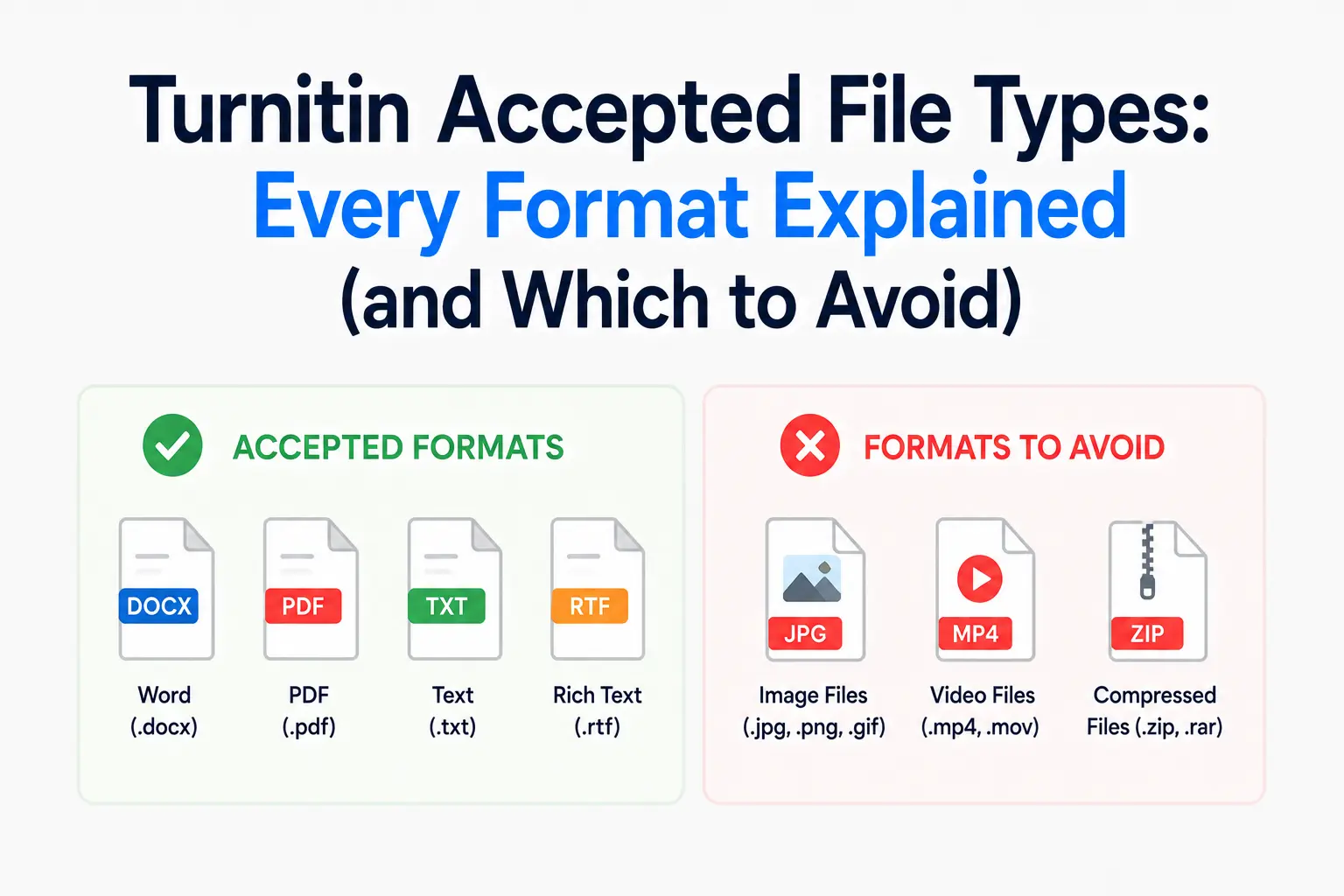
The most important thing to know is that you cannot upload a .gdoc file to Turnitin. A .gdoc file is not a document — it is a shortcut that points to a file stored on Google's servers. If you download your Google Doc as a .gdoc file and try to upload it, Turnitin will not be able to read it and the submission will fail.
Turnitin's official file requirements guide confirms that .gdoc is not a supported format. To submit work written in Google Docs, you need to convert or export it first.
The three ways to submit Google Docs work to Turnitin
Option 1: Export as Word (.docx) — recommended
The cleanest and most reliable method. In Google Docs, go to File → Download → Microsoft Word (.docx). This saves a copy of your document as a .docx file, which Turnitin accepts fully and processes exactly as it would any Word document. The downloaded file contains your full text, footnotes, tables, and formatting — everything Turnitin checks.
Option 2: Export as PDF
Go to File → Download → PDF Document (.pdf). Turnitin accepts PDF files, but with one important caveat: the PDF must contain selectable, highlightable text — not an image of text. Google Docs exports produce text-based PDFs that Turnitin can process, so this method works. However, certain formatting elements behave differently in PDF versus Word submissions. Our post on how Turnitin handles PDF files covers the technical differences in detail.
Option 3: Submit via Google Drive integration
Some Turnitin-enabled learning management systems allow you to connect your Google Drive and submit a file directly from it. If this option appears in your submission interface, you can select your Google Doc from Drive. Turnitin will then convert it automatically during the upload process. Note that Turnitin's Google Drive submission guide notes that third-party cookies must be enabled in your browser for this to work — if Google sign-in fails, it is almost always a cookie setting issue, not an account problem.
What Turnitin checks in your converted Google Doc
Once your Google Doc is submitted in a supported format, Turnitin processes it the same way as any other document. The similarity check scans:
- All body text — every paragraph in your main document
- Footnotes and endnotes — included in PDF submissions; handling varies in .docx depending on document structure
- Text in tables — editable, selectable text within tables is processed
- Headers and footers — included in PDF submissions specifically
- Reference lists — included by default unless the instructor has applied the bibliography exclusion filter
What it does not check: images, charts exported as images, embedded objects that are not text-based, and any content that is stored as a non-text graphic element. Our full guide on what Turnitin checks covers the complete list of what is and is not processed.
Does Draft Coach work inside Google Docs?
Yes — and this is actually the best way to use Google Docs with Turnitin before your final submission. Turnitin Draft Coach is a Google Docs add-on that lets you run up to three similarity checks on your document before you submit to your instructor. You can access it via Extensions → Turnitin Draft Coach in Google Docs, provided your institution has licensed it.
The important limitation is that Draft Coach only shows the similarity report — it does not show the AI Writing Report score your instructor will see. Running a clean Draft Coach check does not tell you whether you will score 0% or 80% on the AI detector. Our post on whether students can check their Turnitin score before submitting explains exactly what Draft Coach does and does not show.
Does Turnitin know you wrote in Google Docs?
No. Once you export and submit your document, Turnitin has no visibility into where the document was created. It cannot detect whether you used Google Docs, Microsoft Word, Notion, or a plain text editor. It processes the text content of the submitted file — the origin of that file is not visible or relevant to the similarity or AI analysis.
One practical consequence: Turnitin also cannot access Google Docs version history. If you are ever asked to demonstrate your writing process as part of an academic integrity inquiry, your Google Docs version history (accessible via File → Version History → See version history) is valuable evidence — but you will need to share it yourself. Turnitin has no access to it.
Formatting issues to watch for
When converting from Google Docs to .docx or PDF for Turnitin submission, a few formatting issues can affect how Turnitin reads your document:
- Tracked changes. If you have tracked changes or suggesting mode edits in your Google Doc, accept or reject all of them before exporting. Turnitin may process both the original and edited versions of tracked-change text, potentially inflating your similarity score with your own revisions.
- Comments. Inline comments in Google Docs are stripped during export, so they will not appear in your Turnitin submission — but double-check this by opening the exported file before submitting.
- Fonts and formatting. Google Docs uses different default fonts than Word. This does not affect Turnitin's analysis, but it may affect how your document looks if your instructor views it in Turnitin's document viewer.
Frequently asked questions
Can I submit a Google Doc directly to Turnitin?
Not as a .gdoc file. You need to export it first as a .docx or PDF, or use your learning management system's Google Drive integration. A .gdoc file is just a shortcut to an online document — it does not contain the actual text, so Turnitin cannot process it.
Does Turnitin check Google Docs differently from Word documents?
No. Once your Google Doc is exported and submitted in a supported format like .docx or PDF, Turnitin processes it identically to any other submission. The tool used to write the document is invisible to Turnitin — it only sees the text content of the submitted file.
Can Turnitin access my Google Docs version history?
No. Turnitin has no access to Google Drive or your document's version history. Only the submitted file is analysed. However, your version history is valuable evidence if you ever need to prove your writing process in an academic integrity inquiry — you can access it via File → Version History → See version history in Google Docs.
Will submitting via Google Drive integration give a different Turnitin score than uploading a downloaded file?
The similarity score should be the same either way, since Turnitin converts the Google Doc to a processable format during both methods. Minor formatting differences between conversion paths are possible but unlikely to affect the similarity percentage meaningfully. If you want absolute consistency, download as .docx and upload manually.
Ready to check your paper?
Get your Turnitin report in minutes.
Same report your institution generates — delivered privately, fast.
Related articles