Can Students Check Their Turnitin Score Before Submitting? The Full Breakdown
Most students don't know that checking your Turnitin score before your professor sees it is only possible through a separate tool called Draft Coach — and it doesn't show the AI Writing Report. Here's exactly what's available and what it shows.
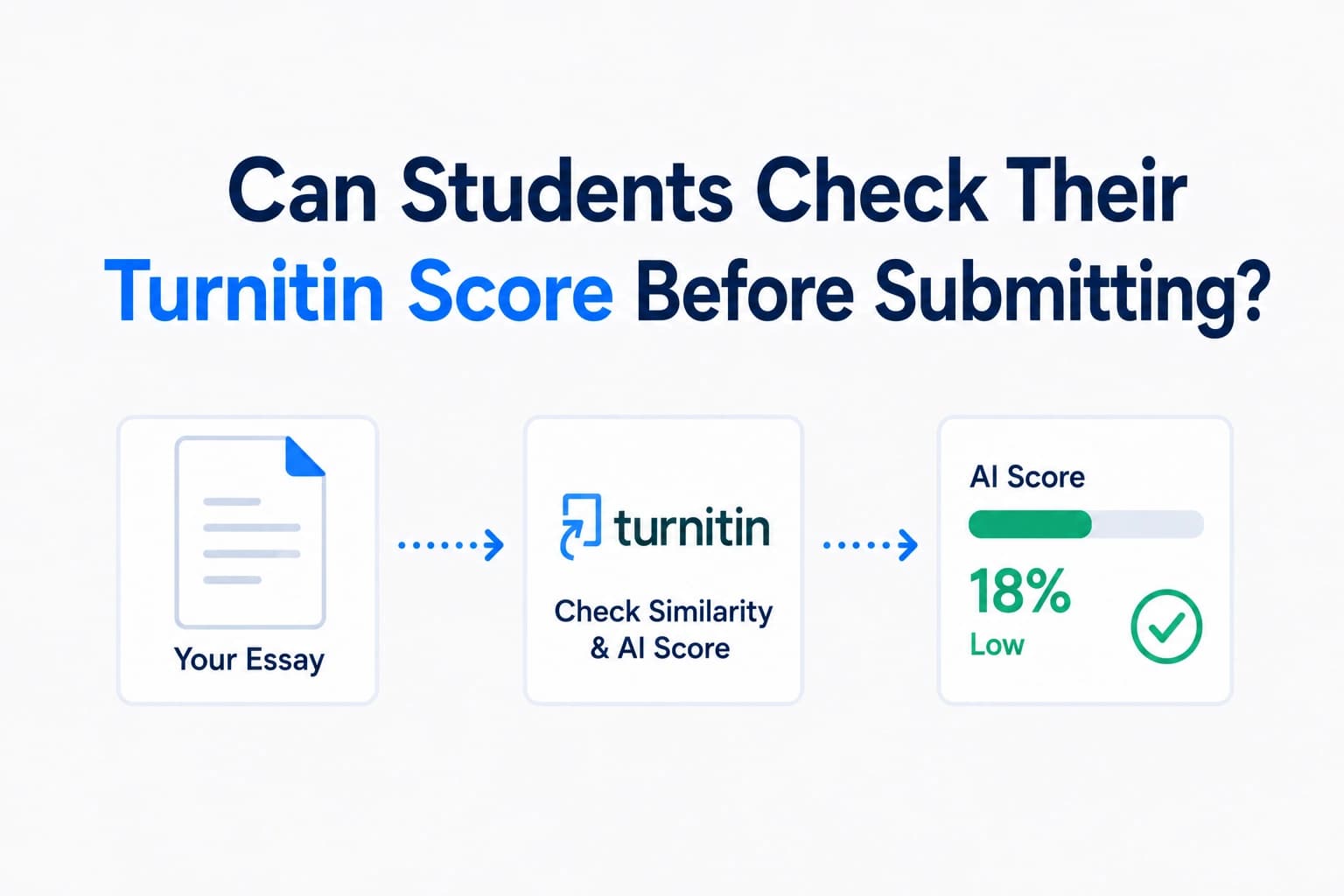
One of the most searched questions students post before assignment deadlines is some version of: “Can I check my Turnitin score before my professor sees it?” The short answer is: sometimes yes, but with important limitations depending on what your institution has enabled and which tool you are using. Here is the full picture — what is available, what it shows, and what it does not show.
The default situation — no, you cannot self-check
Turnitin is not a tool students log into independently. By default, you can only generate a Similarity Report by submitting to an assignment that your instructor has created. You do not have a personal Turnitin account that lets you upload essays whenever you want. Turnitin's own help centre confirms this: students cannot check a paper for similarity before submitting it to an assignment unless their institution has enabled a specific tool called Draft Coach.
This surprises many students who assume Turnitin works like an open website you can use freely. It does not — it is a platform licensed to institutions, and access is gated through assignments created by instructors.
What Draft Coach is and how it works
Turnitin Draft Coach is a separate tool that allows students to run their own Similarity Reports before submitting a final draft. It operates as a plugin inside Google Docs or Microsoft Word — not inside Turnitin itself. According to Turnitin's official Draft Coach FAQ, it gives students three key checks:
- Similarity check — scans your document against Turnitin's database of web pages, student papers, and academic publications and returns a similarity percentage with highlighted matches, just like the instructor-facing report.
- Citation check — identifies references and flags incomplete or potentially missing citations.
- Grammar check — basic grammar and clarity suggestions built into the workflow.
You can run a total of three similarity checks per document using Draft Coach. Turnitin recommends using them strategically — not burning all three early in the drafting process. The reports generate within a few minutes and show highlighted matching text with source links, exactly as the instructor report does.
The critical limitation — Draft Coach does not show the AI score
This is the part students most often miss. Draft Coach shows your similarity score — but it does not show the AI Writing Report score that your instructor sees.
The AI Writing Report is only available through the full Turnitin assignment submission — the instructor-facing tool. NC State's Turnitin update documentation clarifies this distinction: AI detection is available through the Turnitin Assignment tool, not through Draft Coach. A clean Draft Coach similarity report does not tell you anything about what your AI score will look like when your professor reviews your submission.
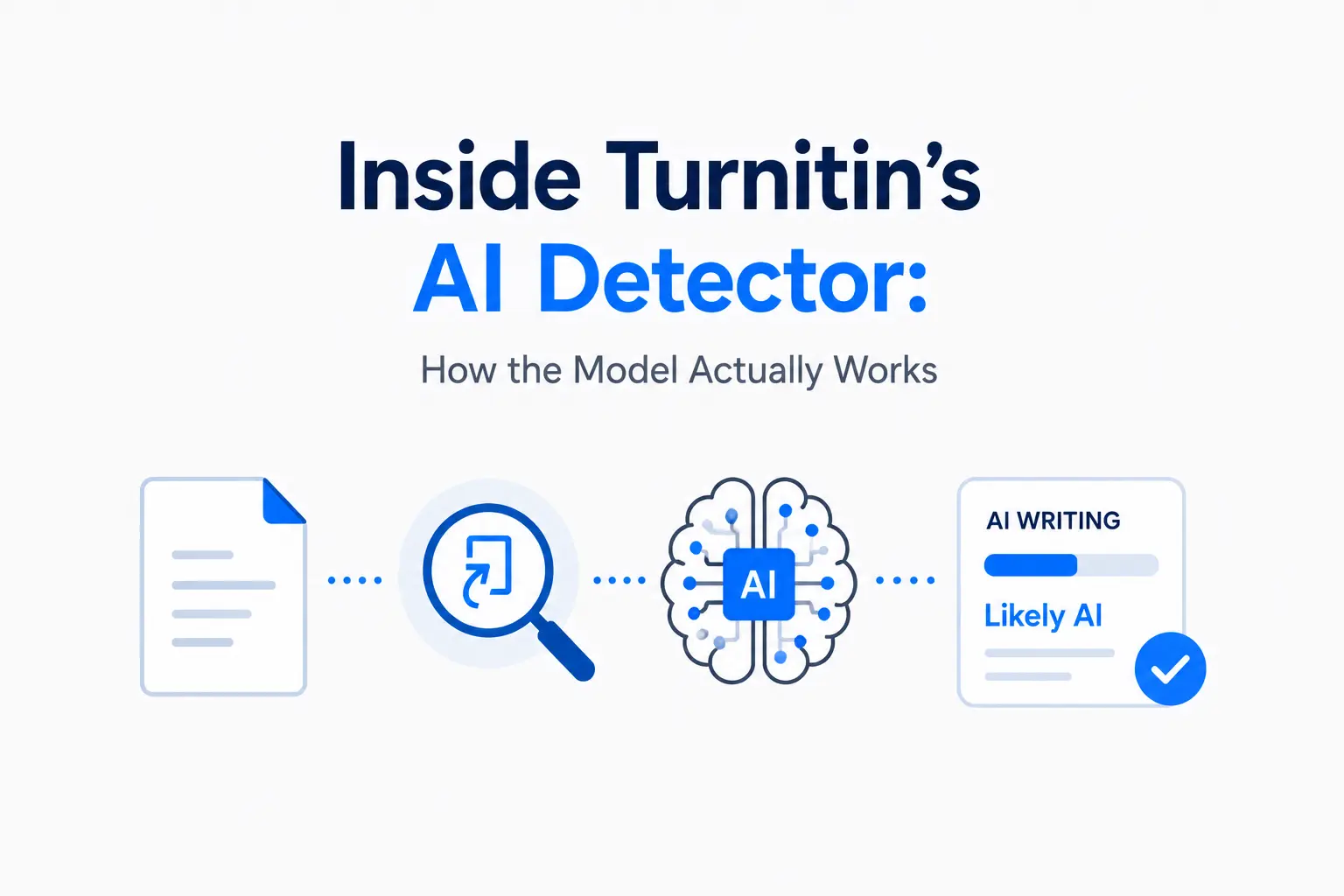
If you have used AI tools in your writing process and want to know what the AI Writing Report will show, Draft Coach cannot answer that question. Our post on how Turnitin's AI detection actually works explains what the instructor-facing report is measuring.
Does Draft Coach submit your paper to the database?
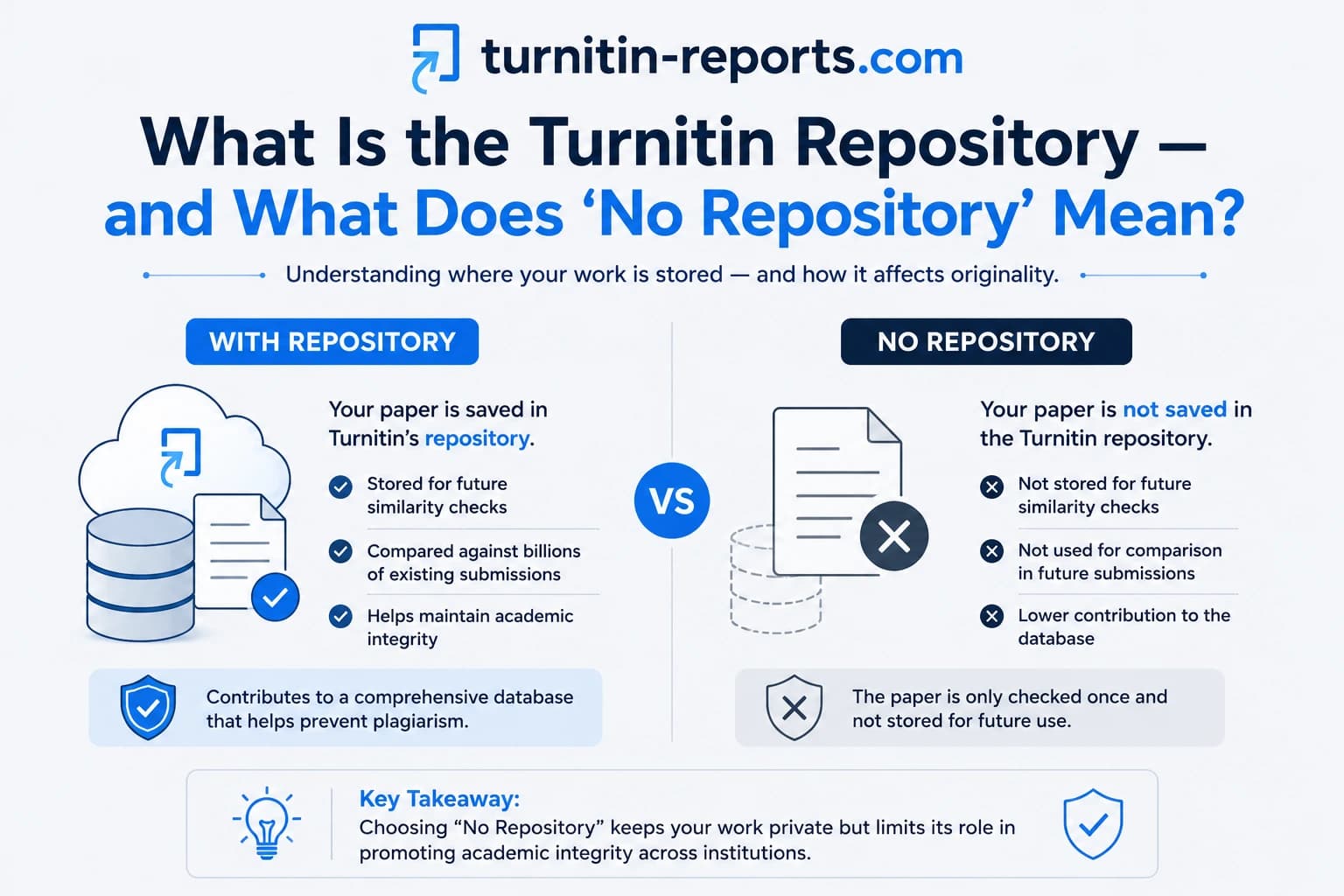
No — this is an important privacy point. According to Turnitin's Draft Coach guide, running a similarity check through Draft Coach does not store your paper in the Turnitin student repository. Your draft is scanned against the database for comparison purposes, but it is not added to the database as a stored submission. Only your final submission through the actual assignment does that — and only if your instructor has enabled repository storage. Our post on what the Turnitin repository setting means explains how that storage decision works.
How to access Draft Coach
Draft Coach is only available if your institution has licensed it — it is a separate add-on that not every Turnitin customer has enabled. To check if you have access:
- In Google Docs: Open your document, go to Extensions in the menu bar, and look for Turnitin Draft Coach. If your institution has it enabled, it will appear as an available add-on.
- In Microsoft Word: Open your document using your institution's Microsoft 365 account, select the Turnitin tab from the top menu, and click Draft Coach to open the panel. This only works with institutional M365 accounts — not personal accounts.
If Draft Coach does not appear, your institution has not licensed it. Contact your library or IT support to confirm what is available to you.
Alternatives if you don't have Draft Coach
If your institution has not enabled Draft Coach, there are a few other options for checking your work before submission:
- Check whether your assignment allows early submission. Some instructors set up assignments that allow students to submit and view their own Similarity Report before the deadline. If the assignment settings allow resubmission and you can see your report after submission, you can revise and resubmit before the due date.
- Use a free similarity checker for a rough estimate. Tools like Grammarly's plagiarism checker or Scribbr scan against web content and give a rough sense of similarity, though they do not access Turnitin's student paper database and will not replicate your Turnitin score exactly.
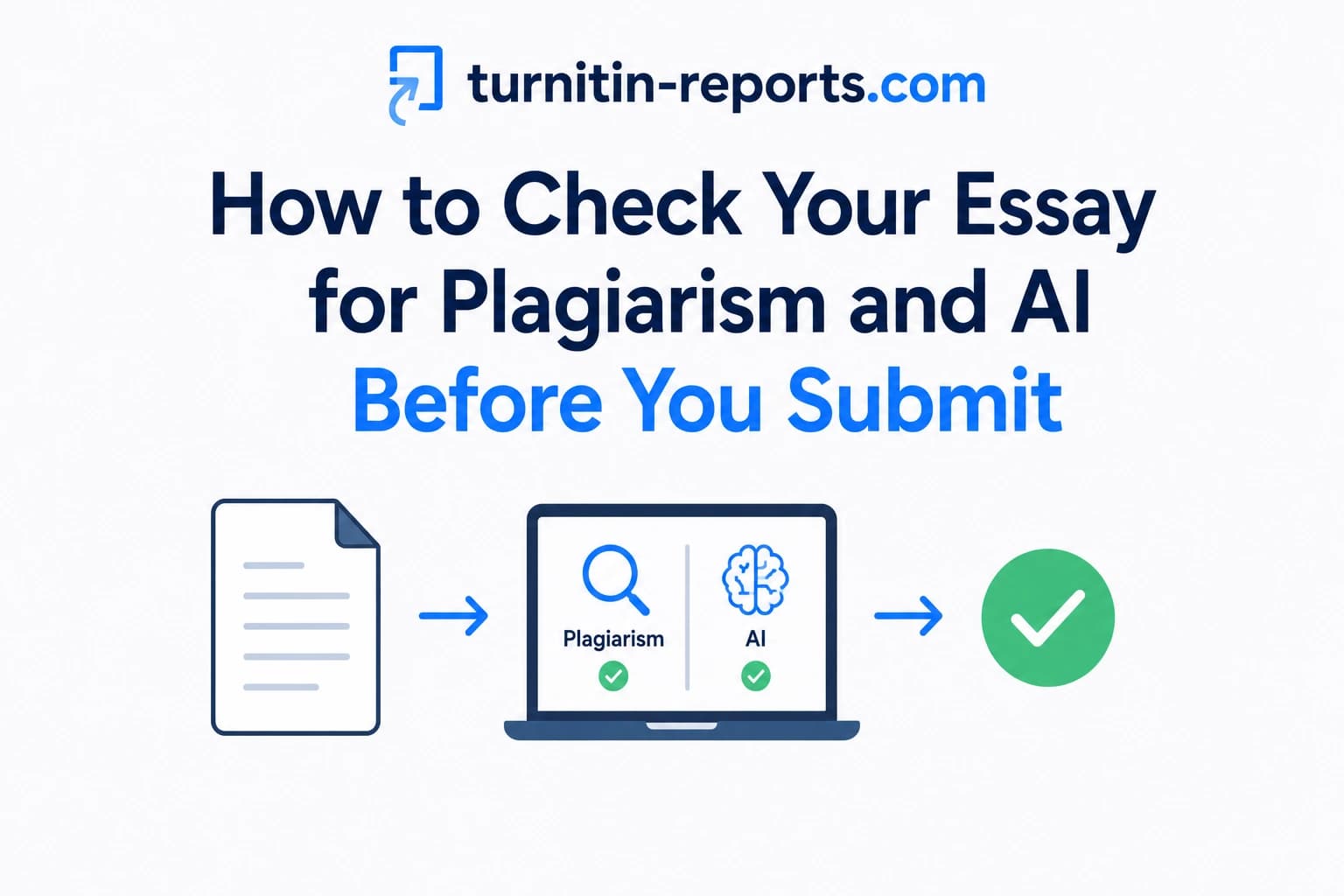
- Check the AI score separately. For the AI Writing Report specifically, you can get an indicative reading from GPTZero or Copyleaks — both free — to understand whether your writing is likely to trigger AI detection before submitting to Turnitin. Our guide on how to check your essay for plagiarism and AI covers the best free tools available.
Frequently asked questions
Can I check my Turnitin similarity score before my professor sees it?
Only if your institution has enabled Turnitin Draft Coach. Draft Coach is a plugin for Google Docs and Microsoft Word that lets you run up to three similarity checks on your draft before final submission. Without Draft Coach, you cannot generate a Turnitin similarity report outside of a formal assignment submission. Some instructors also set up assignments that let students view their own report after submitting, which allows revision before the deadline.
Does Turnitin Draft Coach show the AI Writing Report?
No. Draft Coach shows the similarity report — the percentage of text that matches sources in Turnitin's database. It does not show the AI Writing Report score that instructors see. AI detection is only available through the full Turnitin assignment tool, not through Draft Coach. If you want to check for potential AI flags before submitting, use a separate tool like GPTZero or Copyleaks.
Will using Draft Coach store my paper in Turnitin's database?
No. Running a similarity check through Draft Coach scans your document against the database but does not add it to the repository. Your draft is checked but not stored. Only a formal assignment submission adds your paper to the Turnitin database — and only if your instructor has enabled repository storage for that assignment.
How many times can I run a Draft Coach similarity check?
You can run up to three similarity checks per document using Draft Coach. Turnitin recommends using these strategically — running one early to identify major issues, one mid-draft after revisions, and one final check close to submission. Once you have used all three checks, you cannot run additional reports on that document through Draft Coach.
Ready to check your paper?
Get your Turnitin report in minutes.
Same report your institution generates — delivered privately, fast.