How to Set Up a Turnitin Assignment: Instructor's Complete Guide
Most of what students see in a Turnitin report is decided before they upload — by how you configured the assignment. Repository selection, report generation timing, exclusion filters, and the AI Writing Report toggle all change what the tool actually does with a submission. Here is what every setting means, the ones that quietly cause problems, and how to configure a draft check differently from a graded final.
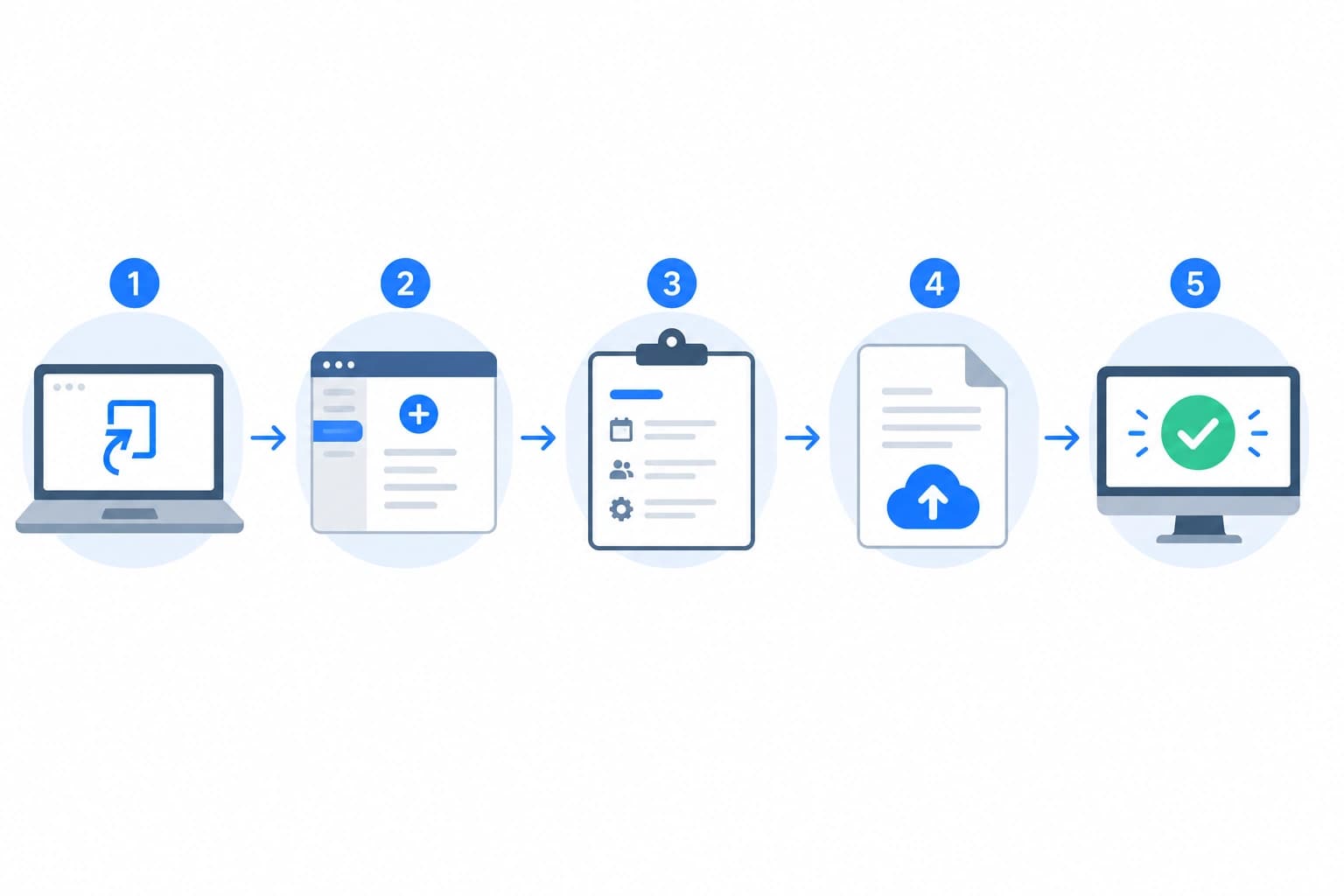
Most of what students see in a Turnitin report is decided long before they upload a file — by how you configured the assignment. Repository selection, report generation timing, exclusion thresholds, and the AI Writing Report toggle each change what the tool actually does with a submission. This guide walks through the settings that matter, the ones that quietly cause problems, and how to configure a draft-check assignment differently from a graded final submission.
Pick the right assignment type first
Turnitin currently offers three assignment types through the LTI 1.3 integration: Standard Assignment (submit files for a Similarity and AI Writing Report), PeerMark (structured peer review layered on a Standard Assignment), and Student Writing (in-platform composition with revision history). For 95% of coursework, you want Standard Assignment. Handwritten Assignment is a fourth type used for scanned exam scripts. The differences and the recommended defaults are documented in Turnitin's Creating a new Standard Assignment guide.
If you are new to what the platform actually processes, our overview of what Turnitin is and what Turnitin checks is a useful primer before configuring anything.
Creating the assignment in your LMS
All major LMS integrations now use LTI 1.3. The entry points differ slightly:
- Canvas. From the course Assignments list, add a new assignment and set the Submission Type to External Tool, then pick Turnitin. Some settings — due date, points, availability window — must be set on the Canvas side; the rest live in the Turnitin panel. Turnitin's Canvas LTI 1.3 quickstart includes a reference table for which setting lives where.
- Moodle. Turn editing on, add an Assignment activity (or the legacy Turnitin Assignment 2 activity if your institution still runs Moodle Direct V2), enable the Turnitin plugin, and configure inside the activity settings. Details are in the Moodle Direct V2 guide.
- Blackboard Learn / Ultra. Add a Turnitin assignment from the content area. Institutions running Anthology's SafeAssign alongside Turnitin should verify which tool is set as the default in Course Settings — mixing the two on the same submission does not work.
- Brightspace (D2L). Create an Assignment folder, then in Evaluation & Feedback select Manage Turnitin, and enable both Similarity and GradeMark. The D2L LTI 1.3 quickstart covers the folder-level workflow.
Once you have the Turnitin panel open, the configuration is identical across platforms — that is the point of LTI 1.3.
Dates, feedback release, and late submissions
You will set three dates: Start Date (when students can begin submitting), Due Date (submission deadline), and Feedback Release Date — sometimes called the post date — which controls when students can see grades, marks, and comments. The feedback release date is independent of the due date, so you can hold marks back for a week of moderation before releasing them in bulk. This is the setting most instructors misconfigure: if you leave feedback release on the same day as the due date, students see grades the moment you enter them.
Late submissions have a single toggle: Allow late submissions. When enabled, students can still upload after the due date; Turnitin flags the submission as late in the inbox, but does not apply a numerical penalty — that is your LMS gradebook's job. If you disable late submissions, the button disappears entirely for students after the due date. There is no half-measure like grace hours built into Turnitin itself, so if you need a soft deadline, set the Turnitin due date later than the LMS deadline and handle penalties in the gradebook.
Similarity Report generation timing
This is the setting that most affects the student experience. You have three options:
- Generate reports immediately (no resubmissions). First upload produces a report; the student cannot resubmit. Use for final, graded submissions where you do not want revision.
- Generate reports immediately (resubmissions allowed until due date). The formative-feedback setting. Students can resubmit unlimited times before the due date. First three resubmissions generate a report immediately; the fourth and later resubmissions take 24 hours to process — a deliberate throttle to discourage rapid tweak-and-resubmit cycles. Only the latest report is retained. Turnitin also regenerates all reports within an hour of the due date to run a collusion check between students in the same class, so scores can shift slightly after the deadline. This behaviour is documented in Turnitin's Optional assignment settings guide.
- Generate reports on due date. No reports until the deadline passes. All submissions are then processed together and compared against each other. Use when you specifically want to prevent students from seeing similarity scores before you do — for example, on take-home exams or timed assessments.
Repository settings — the setting that quietly hurts students
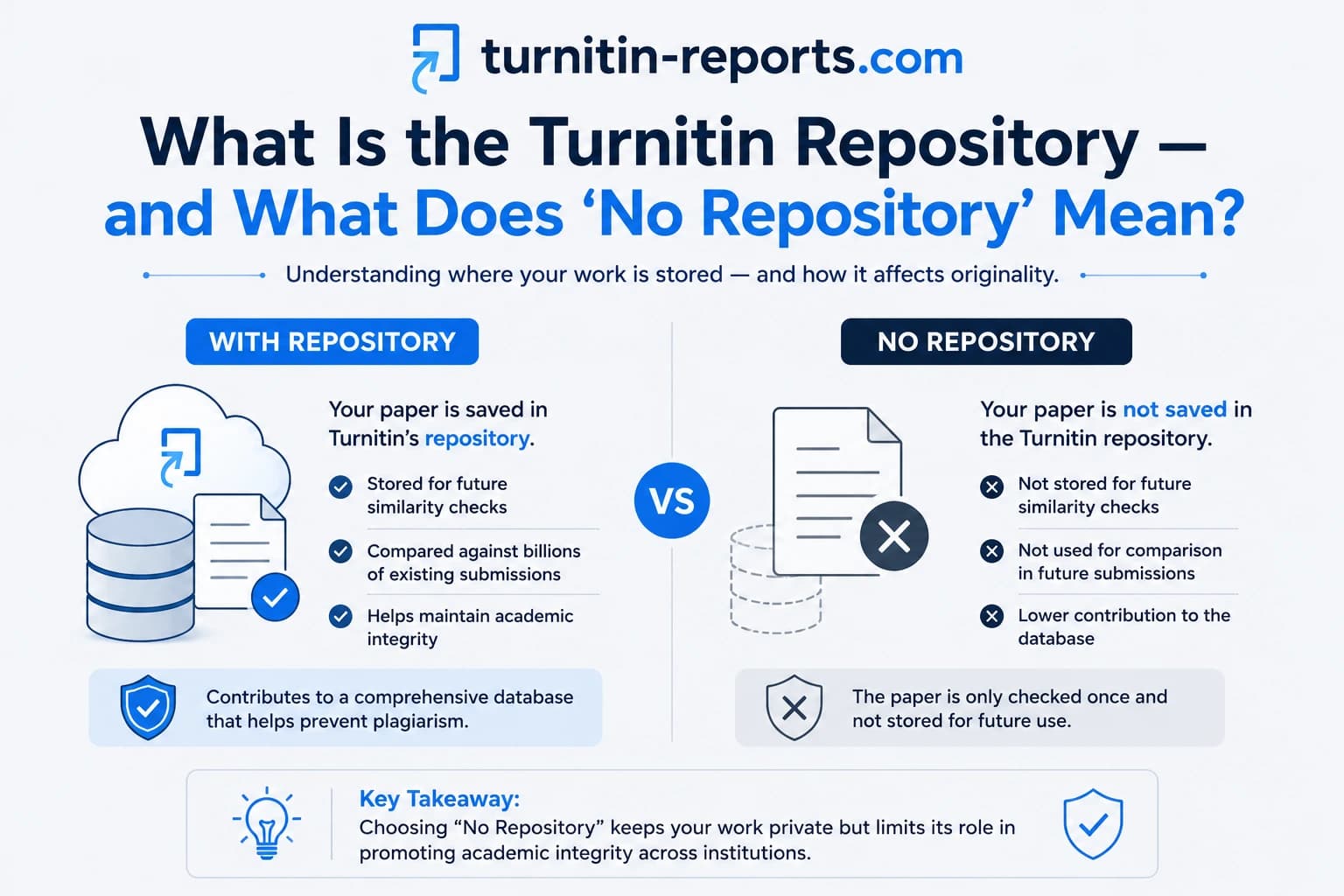
The Submit papers to setting decides whether the paper joins Turnitin's database. The three options are Standard Paper Repository, Institution Repository, and No Repository. Choose deliberately — this is the single setting most likely to cause problems when students later legitimately reuse or rework their own writing.
- Standard Paper Repository. The paper is stored globally and matched against all future submissions worldwide. Correct for final, graded submissions. Wrong for anything a student may legitimately develop into a later piece of work.
- Institution Repository. Stored only for cross-checking within your institution. Sensible for department-level assessments where you care about internal collusion but not global matching.
- No Repository. The paper is checked but not stored. This is the correct choice for draft-check assignments, formative assessments, and any assignment that will feed into a later graded submission — otherwise the student's own final submission will match their own draft at close to 100%.
For a deeper look at how the repository setting shapes what the similarity score actually means, see our post on the Turnitin repository and No Repository option. Our guide to reading the similarity score covers what those matches actually represent once a report is generated.
Exclusion filters at the assignment level
Three exclusion filters can be set as assignment defaults so they apply to every submission automatically:
- Exclude bibliography. Turnitin's algorithm identifies reference lists and strips them from the score. Effective for APA, MLA, Chicago, and Harvard styles. Turnitin's exclusion filters guide details how the detection falls back to heading keywords if the algorithm cannot resolve the section.
- Exclude quotations. Text inside straight or curly quotation marks or block-quote formatting is dropped. Reliable for short quotations, less so for block quotes that lack proper markup.
- Exclude small matches. Filter matches below a word or percentage threshold. Minimum threshold is 8 words; the practical range is 10 to 20 words. Setting this too high hides genuine unattributed lifts; setting it too low leaves the report cluttered with three-word coincidences.
These filters are on by default at the report level too, but setting them at the assignment level means every student and every report you open starts from the same baseline — which matters for consistency in a grading team. Note that footnotes, tables, and headers behave differently from the main body; our post on whether Turnitin checks footnotes, tables, and headers covers the edge cases.
AI Writing Report and file type restrictions
The AI Writing Report is tied to your institutional account setting rather than the individual assignment. If your administrator has AI detection enabled, it runs on every submission and cannot be disabled per assignment — Turnitin's AI Writing Report guide is explicit that the toggle sits at the account level. If your institution has disabled AI detection globally (some have, following documented false-positive concerns), no assignment setting can turn it back on. Our post on how Turnitin's AI detection works covers the underlying model, and Turnitin AI false positives covers why some institutions have pulled back from it.
You can restrict what file types students upload. The Allow any file type option lets students submit anything but only generates a similarity report on text-extractable formats. The default — text-only file types — restricts uploads to Word, PDF, RTF, plain text, Google Docs, and a handful of others. Our post on Turnitin's accepted file types lists the full set. For a straight essay assignment, keep the default. Turn on Allow any file type only when you specifically expect non-text artefacts like code, spreadsheets, or media alongside the writing.
Rubrics, PeerMark, and QuickMarks
A rubric attached to the assignment appears inside Feedback Studio during grading. Create or import through the Rubric Manager, then select the rubric from the dropdown in assignment settings. Rubrics are reusable across assignments in the same course — build one, attach it everywhere it applies. QuickMarks (Turnitin's reusable comment library) attach at the account or instructor level rather than the assignment, so any QuickMark set you have created is already available inside the report viewer.
PeerMark is created as a separate assignment layered on top of an existing Standard Assignment. You cannot create PeerMark first — Turnitin needs a submission pool to distribute to reviewers. Set the distribution rules (number of reviews per student, self-review on/off), attribution (anonymous or attributed), and questions. Anonymous review is the default and generally the pedagogically stronger choice.
Anonymous marking and group assignments
Anonymous marking hides student names from you until you have released grades — useful for reducing bias in high-stakes assessments and mandated in some UK institutions. Turn it on before students begin submitting; enabling it retrospectively does not un-reveal what you have already seen. Group submissions are not natively supported by Turnitin itself; you configure them at the LMS layer (Canvas Group Sets, Moodle Groups) and have one nominated student per group upload the shared file.
Draft-check vs final submission — recommended configurations
Two configurations, tuned to opposite purposes:
Draft-check assignment (formative). Generate reports immediately, resubmissions allowed until due date. Repository: No Repository. Exclude bibliography, quotations, and small matches under 10 words. Feedback release date the same as due date. Purpose: let students diagnose their own similarity risk without polluting the repository or capping their own final submission.
Final graded submission. Generate reports immediately, no resubmissions. Repository: Standard Paper Repository. Exclude bibliography and small matches under 8 words; leave quotations un-excluded so you can see how heavily students lean on quoted material. Feedback release date one week after the due date. Late submissions off unless you have a documented policy allowing them.
If you run both a draft check and a final submission on the same piece of work, the No Repository setting on the draft is what makes the final not match itself. Get that wrong and the student's final submission will hit 90%+ similarity against their own draft — a common misconfiguration that produces a lot of avoidable academic-integrity noise.
Frequently asked questions
Can I change assignment settings after students have submitted?
Some settings, yes; the load-bearing ones, no. Dates, feedback release, and exclusion filters can be edited at any time. Repository setting and report generation timing are locked once the first submission arrives — Turnitin does this to prevent retroactive changes to what students agreed to when they submitted. If you need to change either of those, the fix is to delete the assignment and rebuild it before more students submit, or accept the current settings for this iteration.
Do students see the AI Writing Report score?
No. The AI Writing Report is instructor-only by default. Students see their Similarity Report but not the AI percentage. This is different from the similarity score, which students see automatically once it is generated. If you want to share the AI score with a student, you do so manually — usually in the context of an academic-integrity conversation.
What happens if a student uploads the wrong file?
On assignments configured with resubmissions allowed until due date, they simply upload the correct file and the new submission replaces the old report. On assignments with no resubmissions, the student needs the instructor to delete the original submission before they can upload again — deletion is an instructor action from the assignment inbox. Only the latest submission's report is retained either way.
Can I set different settings for different students in the same assignment?
No. Assignment settings apply uniformly to every student in the class. For a student with a documented accommodation (extended deadline, alternative format), the workaround is a separately created Turnitin assignment restricted to that student through your LMS's availability rules. This is clunky but is the supported pattern.
Does the AI Writing Report affect the similarity score?
No — they are two independent systems that happen to appear in the same report interface. A paper can score 0% similarity and 90% AI, or vice versa. The similarity score measures textual overlap with Turnitin's database; the AI Writing Report analyses the statistical properties of the prose. Neither number affects the other.
Ready to check your paper?
Get your Turnitin report in minutes.
Same report your institution generates — delivered privately, fast.