Turnitin Draft Coach: The Complete Student Guide to Pre-Submission Checks
Turnitin Draft Coach lets you run up to three Similarity Reports inside Google Docs or Word Online before you submit — without adding your paper to the repository. Here is how to access it, what it shows, how to use your three checks strategically, and the limitations most students miss.
Turnitin Draft Coach is the only official way most students can see a Turnitin Similarity Report before hitting submit. It runs inside Google Docs and Microsoft Word Online, gives you up to three similarity checks per document, and does not store your paper in the student repository. It is also widely misunderstood — students routinely expect it to preview the AI Writing Report, which it cannot do. This guide walks through exactly what Draft Coach is, how to access it, what it shows, what it does not show, and how to use your three checks strategically.
What Turnitin Draft Coach is
Draft Coach is a student-facing writing companion that Turnitin distributes as a plugin for Google Docs and Microsoft Word Online. According to Turnitin's official Draft Coach FAQ, it is designed for pre-submission review so students can catch problems before an assignment is graded. It sits alongside Turnitin's main products (Feedback Studio and Originality) rather than replacing them — the instructor-facing tools still generate the authoritative report at submission time.
Draft Coach is not a separate website you log into. It appears as an add-on inside your existing word processor and pulls the same similarity data Turnitin's engine uses for instructor reports. If you have never heard of the wider platform, our overview of what Turnitin is and how it works covers the ecosystem Draft Coach plugs into.
The three features inside Draft Coach
Draft Coach bundles three checks into a single side panel:
- Similarity check — scans your draft against Turnitin's database of web pages, previously submitted student papers, and academic publications, then returns a similarity percentage with highlighted matches and clickable source links.
- Citation check — reviews your document for references in APA, Chicago, and MLA and flags citations that appear incomplete, malformed, or missing corresponding entries in the reference list.
- Grammar guide — surfaces foundational grammar, mechanics, and usage suggestions to help polish the draft before submission.
The similarity check is the headline feature, but the citation and grammar tools run without eating into your check limit. You can use them as often as you like while drafting.
How to access Draft Coach in Google Docs and Microsoft Word
Draft Coach is license-dependent — your institution has to enable it before you can use it. Access looks slightly different depending on the platform.
Google Docs: Open your document, click Extensions in the top menu, then look for Turnitin Draft Coach. If your institution has deployed it through their Google Workspace admin console, it will appear as an available add-on. You can also see the product page on the Google Workspace Marketplace, though only an administrator can install it for the domain. Turnitin's official steps for adding Draft Coach to a Google Doc walk through the setup.
Microsoft Word Online: Open your document using your institution's Microsoft 365 account, click Insert, then Add-ins, then Admin Managed, and select Turnitin Draft Coach. Turnitin's Word Online installation guide documents the flow. Important limitation: Draft Coach does not work in desktop versions of Word. You must use Word Online through a browser with your institutional account. If your institution has not deployed the add-in, it will not appear — contact your library or IT team to check.
The three-check limit per document
Each document is capped at three similarity checks total. Turnitin does not reset the counter on a timer, and duplicating the document into a new file to reset the count is not officially supported. Once you have used all three checks on a given draft, the similarity panel will still show your last generated report but you will not be able to run a fresh scan.
Turnitin's official reports guide recommends spacing the checks out — one early to catch structural issues (large unquoted passages, dumped notes, missing citations), one in the middle after major revisions, and one final check close to submission. Burning all three before you have done any real editing wastes the tool.
What Draft Coach shows — and what it does not
This is the single most common misconception. Draft Coach shows the Similarity Report. It does not show the AI Writing Report.
The AI Writing Report — the score that flags content as likely AI-generated — is only produced when a paper is submitted through the full Turnitin assignment tool that your instructor sees. Draft Coach has no AI detection panel. A clean Draft Coach similarity report of 6% tells you nothing about what your AI percentage will look like once you submit. This trips up students who assume “pre-check my paper on Turnitin” also means “pre-check my AI score.” It does not.
If you want a sense of your AI score before submitting, you have to use an external tool. Our guide on how to check an essay for plagiarism and AI covers the free options students use, and whether students can check their Turnitin score before submitting covers the wider picture of self-checking.
Does Draft Coach store your paper in the Turnitin repository?
No. This is confirmed in Turnitin's official documentation: running a similarity check through Draft Coach compares your draft against the database but does not add it to the student paper repository. Draft Coach does not create an instructor-visible submission and does not store your file. Only a formal assignment submission through your LMS or Feedback Studio can store the paper — and only when the instructor has set the assignment to save to the standard repository. Our post on what the Turnitin repository setting actually does explains that distinction in depth.
The practical implication: you can run Draft Coach on a rough draft without worrying that a future submission of the finished paper will match against your own earlier version.
Cost and institutional access
Draft Coach is not sold as an individual subscription. There is no consumer plan a student can buy directly from Turnitin. It is bundled into institutional Turnitin licenses as an optional add-on, and universities decide whether to enable it. If your school has it, it is free to you as a student. If your school has not licensed it, no amount of setup on your end will unlock it.
A growing number of universities have rolled it out — for example, the University of Reading launched Draft Coach in early 2026, and the University of Hong Kong maintains a Draft Coach LibGuide for its students. Similar deployments exist across the UK, US, and Australia. The quickest way to check your own access is simply to open Google Docs or Word Online and look for the add-on.
Language support
Draft Coach supports multiple languages beyond English. The similarity check is language-agnostic in principle — it compares your text against sources regardless of language — and the interface itself is localized for the major markets Turnitin serves. That said, the citation check's style detection is strongest for English-language APA, Chicago, and MLA formats, and grammar guidance is most reliable in English. Non-English writers can still use the similarity check productively, but should not expect the same depth of grammar or citation feedback in every language.
How to use your three checks strategically
Because you only get three, sequencing matters. A workflow that works for most students:
- Check 1 — first complete draft: run this once you have a full draft with references. The goal is not a low score — it is to see which passages are matching and whether the citations are pulling correctly. You will often find quoted passages that were not marked as quotes, or paraphrases that stayed too close to the original.
- Check 2 — after substantive revision: once you have rewritten the flagged sections and tightened your citations, run the second check. Compare the highlighted matches to Check 1 to make sure the passages you edited actually reduced their similarity.
- Check 3 — final pre-submission: run this on the version you intend to submit. If the score is in a range you and your instructor consider appropriate, you are done. Our post on how to interpret a similarity score covers what the numbers actually mean, and how to lower a Turnitin similarity score covers concrete techniques if Check 3 comes back higher than you expected.
Draft Coach vs just submitting to a draft assignment
Some instructors set up a separate ungraded “draft” assignment in the LMS that students can submit to and view their own Similarity Report. That workflow gives you the full instructor-facing report (including, if enabled, the AI Writing Report) without a permanent grade. Draft Coach is a better fit when no draft assignment exists, when you want to iterate inside Google Docs or Word without leaving the document, or when your instructor has not built out ungraded submission slots. The two are not mutually exclusive — use whichever your institution offers.
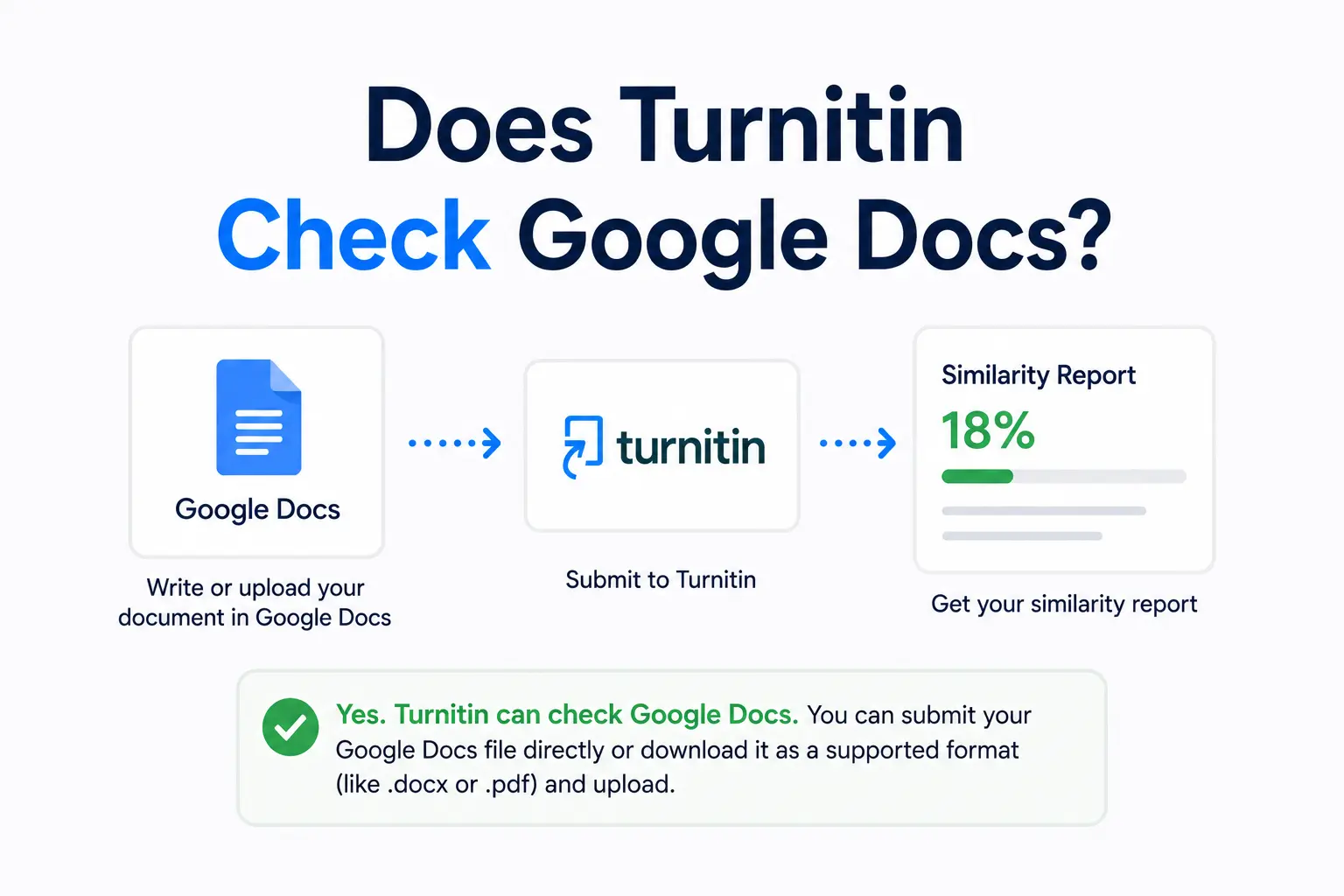
One thing worth noting: Draft Coach's similarity engine looks at the same sources as the full Turnitin assignment tool. If you are worried about the Google Docs question specifically, our post on whether Turnitin checks Google Docs covers how content from Docs interacts with the database.
Known limitations and issues
- No AI Writing Report. Repeated because students keep missing it: there is no AI panel in Draft Coach.
- No desktop Word support. The add-in only runs in Word Online. If you write in desktop Word, you have to open the file in the browser version to check it.
- Three-check ceiling per document. There is no paid upgrade for students to buy more checks.
- Institution gated. If your university has not licensed Draft Coach, you cannot use it. Personal Google or Microsoft accounts do not unlock it.
- Deployment lag. When an institution first enables the Microsoft Word add-in, it can take up to 12 hours to propagate to student accounts.
- Similarity is not plagiarism. The Draft Coach percentage is a starting point for review, not a verdict. A high score can be entirely legitimate quotation, and a low score does not guarantee integrity.
Frequently asked questions
Is Turnitin Draft Coach free for students?
It is free to use if your institution has licensed it. Turnitin does not sell a direct-to-student subscription — Draft Coach access is bundled into the institutional Turnitin contract and enabled by administrators. If your school has it, you use it at no cost. If your school does not, there is no personal purchase option.
Does Draft Coach show the Turnitin AI score?
No. Draft Coach shows only the Similarity Report — the percentage of text matching sources in Turnitin's database. The AI Writing Report is generated exclusively when a paper is submitted through the instructor-facing Turnitin assignment tool. There is no way to preview the AI score through Draft Coach, and students who want an indicative reading before submitting need to use an external AI detector.
Will my paper be added to the Turnitin repository if I use Draft Coach?
No. Running a similarity check through Draft Coach compares your document to Turnitin's database but does not store it as a submission. Only a formal assignment submission adds a paper to the repository, and only when the instructor has enabled that setting for the assignment. Draft Coach is safe to use on early drafts without worrying about self-matching against a saved version later.
How many similarity checks do I get with Draft Coach?
Three per document. Turnitin recommends using them strategically — one on the first complete draft, one after substantive revision, and one final check before submission. The citation and grammar tools do not count toward the three-check limit and can be used freely.
Can I use Draft Coach in desktop Microsoft Word?
No. Draft Coach only runs in Microsoft Word Online (the browser version) and Google Docs. Desktop Word does not support the add-in. If your workflow is in desktop Word, you need to open the file in Word Online through your institutional Microsoft 365 account before you can run a check.
Ready to check your paper?
Get your Turnitin report in minutes.
Same report your institution generates — delivered privately, fast.
Related articles
Can Students Check Their Turnitin Score Before Submitting? The Full Breakdown
6 min read · July 9, 2026
Does Turnitin Check Google Docs? How to Submit Without Losing Your Formatting
6 min read · July 11, 2026